

How-To: Bulk/Group Subscriptions
1. Overview
Group and bulk licenses allow an organization to purchase multiple subscriptions under a single agreement. The purchaser pays once for N seats, and those seats are distributed to individual recipients.
Two license models are supported:
- Managed seats — The organization buys N seats. A group admin assigns and unassigns members. Seats can be transferred between users. Think: corporate site license with a roster.
- Bulk individual — The purchaser provides a recipient list. Each recipient gets a standalone subscription. Think: a school buying 200 copies for students.
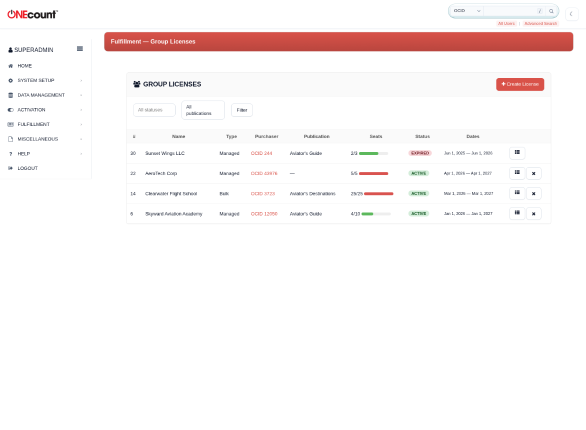
The Group Licenses list showing four demo licenses with seat utilization bars and status indicators.
In this example, Skyward Aviation Academy has a managed-seat license with 4 of 10 seats assigned (green bar). Clearwater Flight School has a fully provisioned bulk license at 25/25 (red bar). AeroTech Corp is at full capacity (5/5). Sunset Wings LLC is an expired license.
2. License Types
2.1 Managed Seats
When a managed-seat license is created, the system pre-creates N unassigned seat rows. A group admin can then assign each seat to a specific user (OCID). Key characteristics:
- Seats can be assigned, unassigned, and transferred
- The purchaser is automatically made the group admin (owner role)
- Additional admins can be added with “manager” role
- Seat counts can be increased or decreased (resize)
- Each assignment creates a real subscription for the assignee
2.2 Bulk Individual
Bulk individual licenses create standalone subscriptions for a list of recipients. Once provisioned, each recipient has an independent subscription. Key characteristics:
- Recipients can be provisioned via CSV upload or OCID list
- Each recipient gets their own gcn_transactionlog entry
- Subscriptions are independent — cancelling the license does not affect already-provisioned recipients
- The license tracks seat counts for administrative purposes
3. Creating a Group License
Navigate to Fulfillment › Group Licenses. Click the red “Create License” button to open the creation modal.
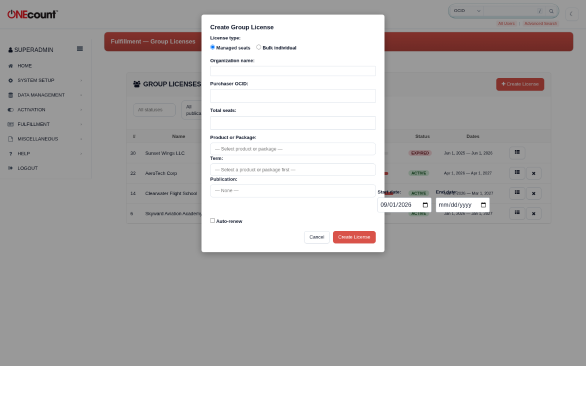
The Create License modal with license type, organization name, seat count, and product-or-package selection.
| Field | Required | Description |
| License type | Yes | Managed seats or Bulk individual |
| Organization name | No | Display name for the organization (e.g., “Skyward Aviation Academy”) |
| Purchaser OCID | Yes | The OCID of the person/organization paying |
| Total seats | Yes | Number of seats to create |
| Product or Package | Yes | Select a product or package from the dropdown (grouped by type) |
| Term | Yes | Select the term — cascades from the selected product or package |
| Publication | No | The fulfillment publication |
| Start date | Yes | License start date (defaults to today) |
| End date | No | License end date (empty = perpetual) |
| Auto-renew | No | Whether to auto-renew when the license expires |
4. Seat Management
Click the seat management icon (≡) on any managed-seat license row to open the seat detail page. This page shows all seats, their assignment status, and available actions.
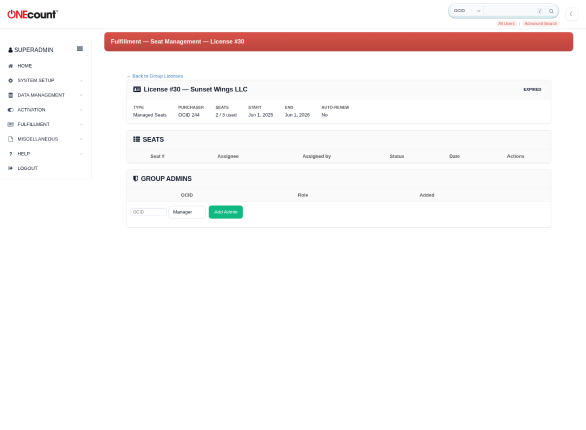
Seat management for Skyward Aviation Academy — 4 assigned seats and 6 unassigned, with assign/unassign controls.
4.1 Assigning a Seat
For unassigned seats, enter the recipient’s OCID and click the assign button. The system will:
- Create a subscription record for the recipient
- Update the seat status to “assigned”
- Increment the used_seats counter on the license
- Log an adds/removals event with reason code GROUP_SEAT_ASSIGNED
4.2 Unassigning a Seat
For assigned seats, click the unassign button. The seat returns to the available pool and the used_seats counter decrements. An adds/removals event is logged with reason code GROUP_SEAT_REMOVED.
4.3 Transferring a Seat
Enter a new OCID and click the transfer button. This atomically unassigns the old user and assigns the new one. Two adds/removals events are logged: GROUP_SEAT_TRANSFER (removal) and GROUP_SEAT_ASSIGNED (addition).
4.4 Resizing
The license can be resized (total seats increased or decreased). The system will not allow reducing below the current used_seats count. New seats are pre-created as unassigned rows for managed-seat licenses.
5. Bulk Individual Provisioning
For bulk individual licenses, use the bulk seat assignment endpoint to provision recipients in batch. Two input methods are supported:
- CSV file upload — The CSV must have an “ocid” column header. Each row creates a subscription.
- Comma-separated OCID list — Enter OCIDs directly in the input field.
Each provisioned recipient is logged with reason code BULK_GROUP_NEW.
6. Group Admins
Group admins are users authorized to manage seat assignments for a specific license. There are two roles:
| Role | Description |
| Owner | Full management access. The purchaser is automatically added as owner. Cannot be removed from the admin panel. |
| Manager | Can assign, unassign, and transfer seats. Can be added or removed by other admins. |
Group admins are managed from the seat detail page under the “Group Admins” section.
7. License Lifecycle
| Status | Description |
| Active | License is in effect. Seats can be assigned/unassigned. |
| Expired | License end_date has passed. A daily cron job (group_license_expiry.php) transitions active licenses to expired and unassigns all seats. |
| Cancelled | Manually cancelled by an admin. All active seats are unassigned. |
| Suspended | Temporarily suspended (e.g., for non-payment). Seats remain assigned but may not grant new access. |
Auto-renewal: If the auto_renew flag is enabled, the expiry cron job will attempt to renew the license via Stripe using the purchaser’s stored payment method.
8. Reporting
Group license recipients have real subscriptions and appear in all standard fulfillment reports. The subscription_source field distinguishes group subscriptions from individual ones:
- RPT-01 — Group recipients counted by classification. Optional source breakdown available.
- RPT-09 — Group-specific reason codes appear in the adds/removals report.
- RPT-19 — Group recipients with valid addresses appear in the mail file.
9. Setup & Configuration
Navigate to Fulfillment › Setup › Group License Settings to configure:
| Setting | Default | Description |
| Enable group licenses | Off | Master toggle for the group license feature |
| Maximum seats per license | 1000 | Upper limit on seats per license |
| Default license duration (days) | 365 | Default duration when end_date is not specified |
10. Permissions
Group license management requires the FULFILLMENT_GROUP_MANAGE permission module. Superadmin users automatically have access.
FULFILLMENT_VIEW is sufficient for read-only access to the license list. Creating, cancelling, and managing seats requires FULFILLMENT_GROUP_MANAGE.
Group admins (non-backend users) can manage seats for their own license without needing the FULFILLMENT_GROUP_MANAGE backend permission. This is controlled by the fulfillment_group_license_admin table.
11. Subscriber Self-Service (Seat Manager Portal)
Group admins do not need access to the ONEcount admin panel to manage their organization’s seats. A dedicated subscriber-facing page lets them log in with their regular ONEcount credentials and manage seats directly.
11.1 Accessing the Seat Manager
The seat manager portal is located at:
https://yoursite.onecount.net/onecount/flexreg/manage-seats.php?brand=YOURBRAND
Group admins can be directed to this URL via email, a link on your website, or from their subscriber profile page. They must be logged in with the same ONEcount account that was designated as a group admin (owner or manager role) for the license.
11.2 My Group Licenses
After logging in, the group admin sees a list of all licenses they manage. Each license shows the organization name, license type, seat utilization, status, and date range.
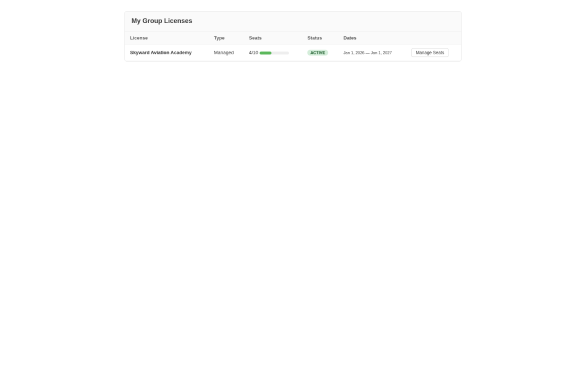
The subscriber-facing “My Group Licenses” view showing Skyward Aviation Academy with 4/10 seats used.
Click “Manage Seats” to open the seat assignment page for that license.
11.3 Managing Seats
The seat detail page shows every seat in the license with its current assignment status and available actions:
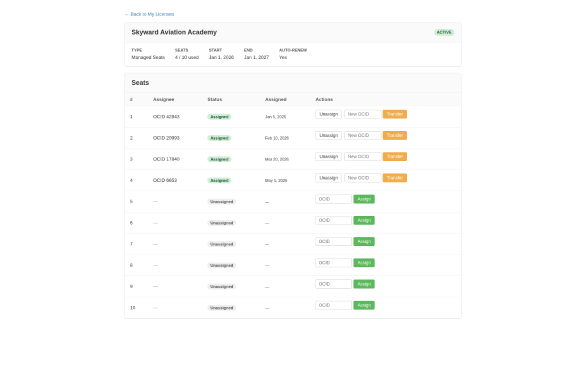
Seat management for Skyward Aviation Academy — 4 assigned seats with Unassign/Transfer controls, 6 unassigned seats with Assign controls.
Available actions for group admins:
| Action | How | What Happens |
| Assign | Enter the recipient’s OCID in an empty seat row and click Assign | A subscription is created for the recipient. The seat status changes to “Assigned.” |
| Unassign | Click Unassign on an occupied seat (confirmation required) | The seat returns to the available pool. The used-seats counter decrements. |
| Transfer | Enter a new OCID next to an occupied seat and click Transfer | The old assignee is removed and the new assignee gets the subscription in one step. |
11.4 What Group Admins Cannot Do
The subscriber self-service portal intentionally omits certain actions that are reserved for backend administrators:
- Resize the license (change total seat count)
- Cancel the license
- Add or remove group admins
- Change the license type, product, or dates
These operations require the FULFILLMENT_GROUP_MANAGE backend permission and are performed from the admin panel’s Group Licenses page.
11.5 Security
The seat manager uses the standard ONEcount subscriber authentication (cookie-based via __ocid). Authorization is checked on every request by verifying that the logged-in OCID appears in the fulfillment_group_license_admin table for the requested license. A subscriber who is not a designated group admin for a license cannot view or modify its seats.