

How-To: Site Licenses
1. Overview
Site licenses provide IP-based concurrent access for institutions such as libraries, universities, and corporate offices. An institution purchases a license for N concurrent seats, and anyone accessing gated content from the institution’s IP range gets transparent access — no login required, no forms to fill out — up to the concurrent seat limit.
Key characteristics:
- Access is determined by IP address, not by individual user accounts
- Concurrent sessions are limited to the purchased seat count
- Sessions are maintained by a heartbeat mechanism — if a user leaves, their seat is automatically released after a configurable timeout (default: 30 minutes)
- When all seats are occupied, new visitors see a branded “seats full” message
- Each seat is represented by a synthetic OCID for reporting purposes
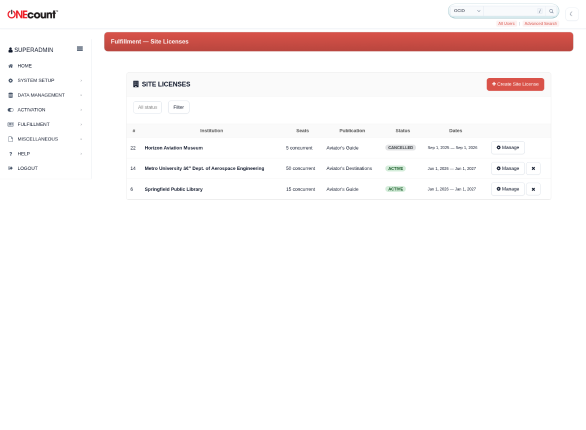
The Site Licenses list showing three demo institutions with concurrent seat counts and statuses.
In this example, Springfield Public Library has 15 concurrent seats (active), Metro University has 50 seats (active), and Horizon Aviation Museum is a cancelled license with 5 seats.
2. How Site Licenses Work
2.1 Access Flow
When a visitor accesses a page with gated content, the following happens:
- 1. The ONEcount widget (oc.min.js) loads and sends an access check request
- 2. The gating layer checks the visitor’s IP against all active site license IP ranges
- 3. If a match is found, the system checks for available concurrent seats
- 4. If a seat is available, the visitor is silently assigned a synthetic identity and granted access
- 5. The widget starts a heartbeat timer to keep the session alive
- 6. When the visitor leaves (closes browser, navigates away), the seat is released
2.2 Synthetic Identities
Each concurrent seat maps to a pre-created synthetic user in the ONEcount database. These users have names like “Springfield Library, Seat 1” and internal email addresses like “sl-42-seat-1@sitelicense.internal.” They have real subscription records, which means they appear naturally in all standard reports.
Synthetic users are created automatically when the site license is created. You do not need to create them manually.
2.3 Session Lifecycle
Sessions are tracked in Cassandra with a Time-To-Live (TTL). The TTL is set to the session_ttl value on the license (default: 1800 seconds / 30 minutes). Every heartbeat from the widget resets this TTL, keeping the session alive. If no heartbeat arrives within the TTL window, the session automatically expires and the seat becomes available.
Additionally, when a user closes the browser tab or navigates away, the widget attempts to release the seat immediately using the browser’s sendBeacon API. This provides faster seat turnover in normal usage.
3. Creating a Site License
Navigate to Fulfillment › Site Licenses. Click the red “Create Site License” button to open the creation modal.
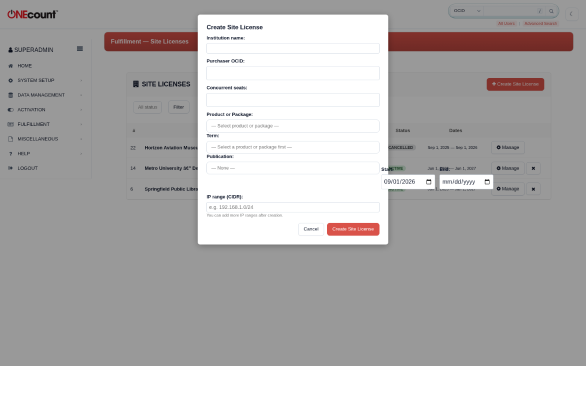
The Create Site License modal with institution name, seat count, product-or-package selection, and initial IP range.
| Field | Required | Description |
| Institution name | Yes | Display name (e.g., “Springfield Public Library”) |
| Purchaser OCID | Yes | The OCID of the billing contact at the institution |
| Concurrent seats | Yes | Maximum number of simultaneous users |
| Product or Package | Yes | Select a product or package from the dropdown (grouped by type) |
| Term | Yes | Select the term — cascades from the selected product or package |
| Publication | No | The fulfillment publication (for magazine content) |
| Start date | Yes | When the license becomes active |
| End date | No | When the license expires (empty = perpetual) |
| IP range (CIDR) | No | Initial IP range in CIDR notation. More can be added after creation. |
When you create the license, the system automatically:
- Creates N synthetic users named “[Institution], Seat 1” through “[Institution], Seat N”
- Creates subscription records for each synthetic user
- Grants product access (user_product entries) so the gating layer recognizes them
4. Managing IP Ranges
Each site license can have multiple IP ranges. Ranges are specified in CIDR notation:
| Format | Example | Matches |
| Single IP | 192.168.1.100 | Exactly one IP address |
| Subnet /24 | 192.168.1.0/24 | 192.168.1.0 through 192.168.1.255 (256 addresses) |
| Subnet /16 | 10.0.0.0/16 | 10.0.0.0 through 10.0.255.255 (65,536 addresses) |
| Larger subnet | 172.16.0.0/12 | 172.16.0.0 through 172.31.255.255 |
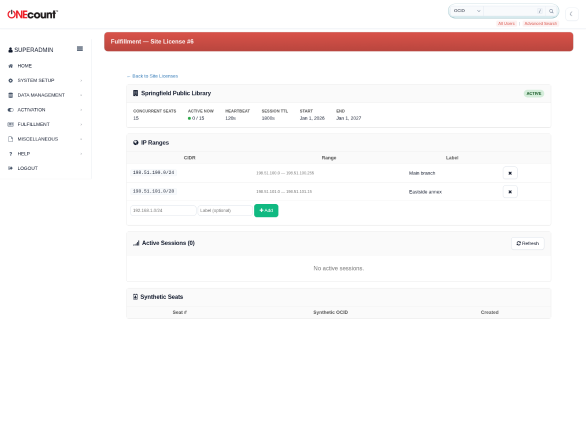
Springfield Public Library detail page showing IP ranges (Main branch /24, Eastside annex /28), active sessions, and synthetic seats.
In this example, Springfield Public Library has two IP ranges configured: 198.51.100.0/24 for the main branch (256 addresses) and 198.51.101.0/28 for the Eastside annex (16 addresses). Each range shows the computed start and end IP and an optional label.
IP ranges are managed from the site license detail page. Click the “+ Add” button to add a new range, or the × button to remove an existing one.
If an IP matches multiple site licenses, the system uses the most specific match (narrowest IP range).
5. Session Management
5.1 Heartbeat Configuration
The detail page header shows the heartbeat and session TTL values for the license. In the Springfield Public Library example:
- Heartbeat interval: 120 seconds — the widget pings every 2 minutes
- Session TTL: 1800 seconds (30 minutes) — sessions expire after 30 minutes without a heartbeat
| Parameter | Default | Description |
| heartbeat_interval | 120 seconds | How often the widget pings to keep the session alive |
| session_ttl | 1800 seconds (30 min) | How long a session persists without a heartbeat before auto-expiry |
These values are set per-license and can be adjusted based on the institution’s needs. A shorter session_ttl frees seats faster but may cause disruptions for slow readers. A longer interval reduces server load but delays seat release for idle users.
5.2 Seats Full Message
When all concurrent seats are occupied, new visitors see a full-screen overlay with a customizable message. The default message is:
“All N seats for [Institution Name] are currently in use. Please try again later.”
You can customize this message per-license via the seats_full_message field. The page auto-retries every 30 seconds.
6. The User Experience
The site license experience is designed to be completely transparent to the end user:
- No login form is displayed
- No registration is required
- No ONEcount branding is shown
- Content loads normally as if it were unprotected
- The only user-visible moment is when seats are full — a branded overlay appears
Behind the scenes, the widget sets session cookies (__oc_sl_session, __oc_sl_id, __oc_sl_hb) to maintain the session. These are automatically managed and do not require user interaction.
7. Monitoring Active Sessions
The site license detail page shows active sessions in real-time (visible in the “Active Sessions” card). For each session, you can see:
- Seat number
- Synthetic OCID
- Visitor’s IP address
- Session start time
- Last heartbeat time
You can force-release a session from this page if needed (e.g., if a session appears stuck). Click the “Release” button next to the session. The “Refresh” button updates the session list.
8. Reporting
Site license seats are represented by synthetic OCIDs with real subscriptions. They flow through all standard fulfillment reports:
- RPT-01 (Circulation) — Synthetic OCIDs are counted in their classification bucket
- RPT-09 (Adds & Removals) — Reason codes SITE_LICENSE_NEW, SITE_LICENSE_EXPIRED, SITE_LICENSE_CANCELLED track lifecycle events
- RPT-19 (Mail File) — Site license seats typically do not receive mail (no physical address), but they appear in the serve log for audit purposes
The subscription_source field on the serve log is tagged as “site_license” for these OCIDs, enabling easy filtering in custom reports.
9. Troubleshooting
| Symptom | Likely Cause | Resolution |
| Users see login form instead of transparent access | IP range not configured or doesn’t match the visitor’s IP | Check the IP ranges on the license detail page. Verify the visitor’s public IP matches a configured range. |
| Seats fill up faster than expected | session_ttl too long; idle sessions holding seats | Reduce session_ttl (e.g., to 900 seconds / 15 min) |
| Sessions don’t release when users leave | Browser doesn’t support sendBeacon or blocks it | Normal — sessions will auto-expire after session_ttl. Consider reducing the TTL. |
| “Seats full” when seats should be available | Stale sessions in Cassandra | Force-release sessions from the admin detail page. Sessions also auto-expire. |
| Synthetic users not appearing in reports | Migration not applied | Apply fulfillment/sql/034_site_license.sql and fulfillment/cql/010_site_license_session.cql |
10. Permissions
Site license management requires the FULFILLMENT_SITE_LICENSE_MANAGE permission module. Creating site licenses additionally requires FULFILLMENT_SETUP. Superadmin users automatically have access to all functions.
Appendix: Navigation
All three subscription model features are accessible from the Fulfillment section of the admin sidebar:
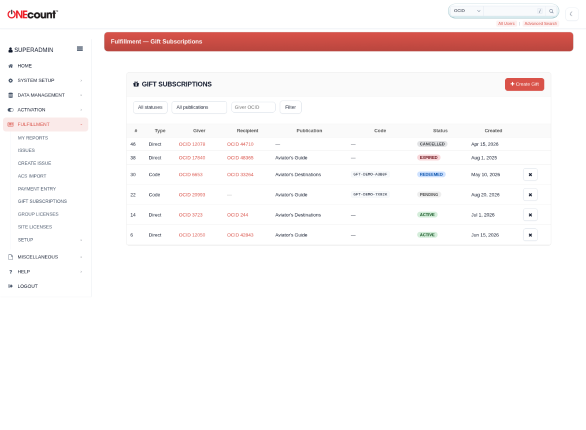
The Fulfillment sidebar menu showing Gift Subscriptions, Group Licenses, and Site Licenses navigation entries.