

Fulfillment System Admin Guide
Configuration, permissions, and integration setup
1. Overview
Before circulation staff can use the Fulfillment module, a system administrator must complete a set of one-time configuration tasks. These tasks establish the link between ONEcount's audience data and the fulfillment workflow, define the publications that will be managed, configure reporting periods and lot-split templates, set up third-party integrations, and assign the correct permissions to each user role.
This guide covers every step in the order you should perform them. If you are enabling fulfillment on a tenant for the first time, work through Sections 2 through 9 sequentially. If you are adding a new publication to a tenant that already has fulfillment enabled, skip to Section 3.
2. Enabling Fulfillment for a Tenant
Fulfillment is controlled at the tenant level by the fulfillment_enabled column on the onecount_super.oc_clients table. A value of 1 turns the module on; a value of 0 (the default) keeps it off.
To enable fulfillment for a tenant, run the following SQL statement on the super database:
UPDATE oc_clients SET fulfillment_enabled = 1 WHERE client_id = <client_id>;
Replace <client_id> with the numeric client identifier from oc_clients. The change takes effect on the next page load for any user on that tenant.
When fulfillment is enabled:
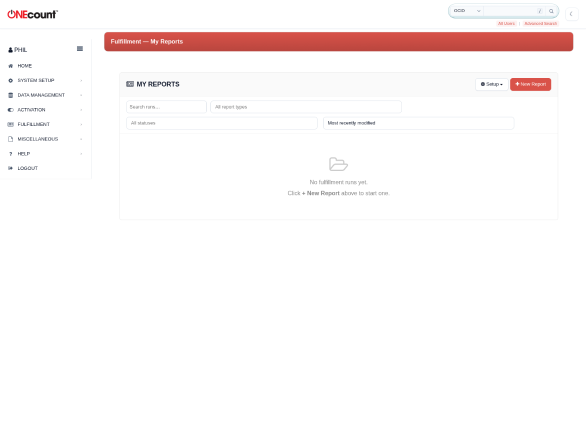
- The Fulfillment top-level menu item appears in the admin sidebar for users who hold at least the fulfillment.view permission.
- All Fulfillment URLs (reports, setup screens, artifact downloads) become accessible according to each user's permission set.
- The Issue Builder link appears in the Data Management section, allowing saved lists to be promoted to issues.
When fulfillment is disabled:
- The Fulfillment menu item is hidden from the sidebar for all users.
- Direct navigation to any Fulfillment URL returns a 404 response.
- Existing data (publications, issues, runs, artifacts) is preserved in the database and will reappear if the module is re-enabled.
3. Publication Setup
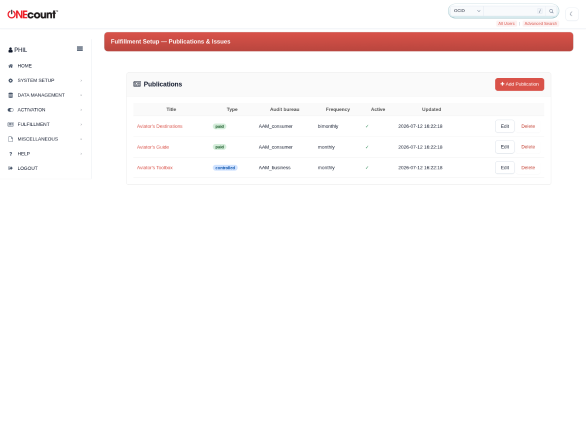
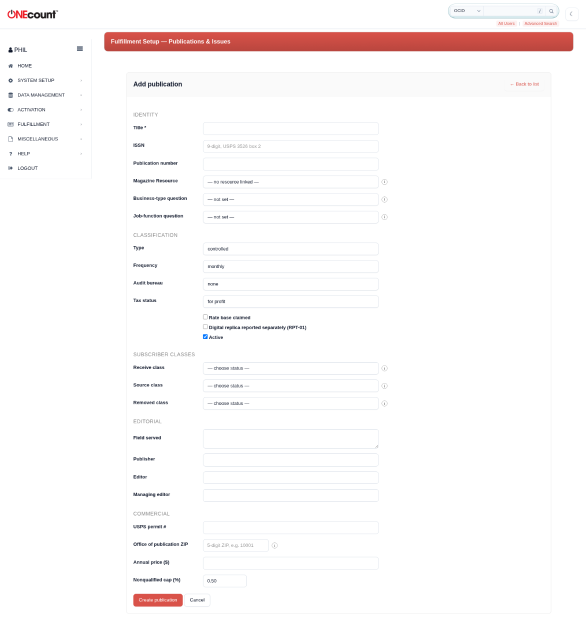
Navigate to Fulfillment, then Setup, then Publications & Issues. Click Add Publication to create a new publication record.
3.1 Required Fields
Every publication requires the following fields at a minimum:
- Title: the display name of the publication as it should appear in reports and the sidebar.
- Resource ID: the ONEcount Resource to which this publication is linked. Each publication maps to exactly one Resource. Subscribers subscribe to the Resource via Packages (Terms), and this link is how the fulfillment system determines who is subscribed to the publication. Select the Resource from the dropdown; only Resources not already linked to another publication are shown.
- Frequency: how often the publication is issued. Options are weekly, biweekly, monthly, bimonthly, quarterly, semiannual, and annual. The frequency drives expected issue counts in RPT-02 and RPT-11.
- Publication type: paid, controlled, or mixed. This determines which reports are relevant and how circulation categories are classified.
- Audit bureau: AAM_consumer, AAM_business, or none. This controls which report templates appear and which validation rules apply.
3.2 Optional Fields
The following fields are optional but should be completed before filing any statements or postal forms:
- ISSN: International Standard Serial Number, printed on the publication masthead.
- Publication number: USPS publication number (required for Form 3526).
- USPS permit: the Periodicals mailing permit number.
- Office of publication: the city and state where the publication is entered as Periodicals mail, along with the ZIP code (office_of_publication_zip). Required for USPS Form 3526 Item 5.
- Annual subscription price: the standard annual rate. Used in RPT-03 and RPT-10.
- Publisher, editor, managing editor: names and mailing addresses. These populate USPS Form 3526 Items 8, 9, and 10.
- Owners: names and addresses of all owners holding 1% or more of total stock (Form 3526 Item 11).
- Security holders: names and addresses of bondholders, mortgagees, and other security holders (Form 3526 Item 12).
- Tax status: whether the organization's tax-exempt status has changed during the preceding 12 months (Form 3526 Item 13).
3.3 The Resource ID Link
The resource_id is the single most important field on the publication record. It connects the fulfillment module to ONEcount's subscription engine. When a user subscribes to a Resource via a Package (Term), that subscription record is what the fulfillment system reads to determine whether the user should appear on a mailing list. Without a valid resource_id, the publication cannot produce any subscriber-based report.
3.4 Rate Base
If the publication declares a rate base (rate_base_claimed = 1), navigate to Setup, then Rate Base Declarations to enter the effective rate base. Each declaration includes the rate base amount, the period start date, and the period end date. RPT-12 (Rate Base Compliance) compares actual paid circulation against the declared rate base and flags shortfalls. A publication may have multiple declarations over time as the rate base changes.
3.5 Demographics
For AAM Business publications, set business_type_question_id and job_function_question_id to the ONEcount demographic question IDs that capture the subscriber's business classification and job function. These drive the cross-tabulation in RPT-05 (Demographic Cross-Tab) and Section 5 of RPT-13 (Paragraph 13).
3.6 Nonqualified Cap
The nonqualified_cap_pct field sets the maximum percentage of total qualified circulation that may be classified as nonqualified before a warning is raised. The default is 0.50% (one half of one percent). RPT-13 checks this threshold and flags the issue if nonqualified recipients exceed it.
3.7 Domestic Country Set
Enter a comma-separated list of ISO 3166-1 alpha-2 country codes that should be treated as domestic for circulation reporting. Typically this is US,PR,VI,GU,AS,MP for US publishers. RPT-04 (Geographic Distribution) uses this list to separate domestic from international circulation.
4. Reporting Periods
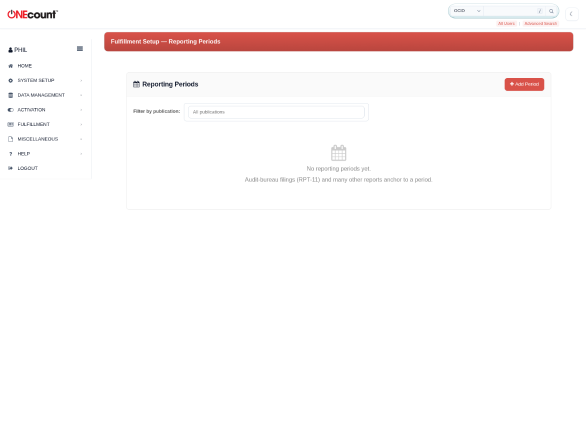
Navigate to Setup, then Reporting Periods. Reporting periods define the time windows over which circulation is measured and statements are filed.
4.1 Standard AAM Periods
AAM-audited publications use two standard half-year periods: H1, running from January 1 through June 30, and H2, running from July 1 through December 31. Create both periods for each calendar year in which the publication will file statements.
4.2 Custom Periods
Publications with non-standard audit windows (quarterly filings, fiscal-year reporting, or non-AAM cadences) can define custom periods with arbitrary start and end dates. The only requirement is that periods for the same publication must not overlap.
4.3 Period Status Lifecycle
Each reporting period moves through three statuses:
- Open: the period is active. Issues can be created and closed within this period. Reports can be run and re-run.
- Closing: the period is being assembled for filing. RPT-11 has been started. No new issues should be added. Existing reports can still be re-run if corrections are needed.
- Filed: the statement has been submitted to the audit bureau. The period and all its data become read-only. Reopening requires the setup and statement_file permissions.
4.4 Period-Issue Binding
Each period is bound to a publication. All issues whose issue_date falls between the period's start and end dates automatically belong to that period. There is no manual assignment step; the date range determines membership.
5. Issues
5.1 Creating Issues from Saved Lists
Issues are created from saved lists. The workflow is: navigate to Data Management, then List Wizard. Build and run the query that defines the recipient universe for the issue. Save the query as a saved list, then use Save as Issue to promote it to a fulfillment issue. Once created, the saved_list_id is bound to the issue and cannot be changed.
5.2 Issue Fields
- Publication: the publication this issue belongs to.
- Issue date: the cover date of the issue. Determines which reporting period the issue falls into.
- Mail date: the date the issue is mailed. Used for postal documentation and AccuZip processing.
- Saved list ID: the List Wizard saved list that defines the recipient universe. Set at creation and immutable thereafter.
5.3 Issue Status Lifecycle
Each issue moves through four statuses:
- Planned: the issue has been created but no reports have been run.
- Open: reports are being generated against this issue.
- Locked: RPT-13 has been completed and the issue's recipient list is frozen. No changes to the underlying saved list will affect the locked data.
- Finalized: RPT-19 (Issue Close) has been completed. The issue is fully processed, mailing documentation has been generated, and all artifacts are available for download.
5.4 Special Issues
Set is_special = 1 to mark an issue as a special or bonus distribution. Special issues are excluded from period averages in RPT-02 and RPT-11. Examples include bonus distributions at trade shows, sample copies, and promotional mailings.
5.5 Audit and Analyzed Flags
Designate one issue per reporting period as the audit issue. The audit issue retains its full recipient list for auditor review. Separately, designate one issue per period as the analyzed issue. The analyzed issue drives Paragraph 7 (geographic distribution by state and country) in the Publisher's Statement. These may be the same issue or different issues depending on your audit bureau's requirements.
6. Lot Split Templates
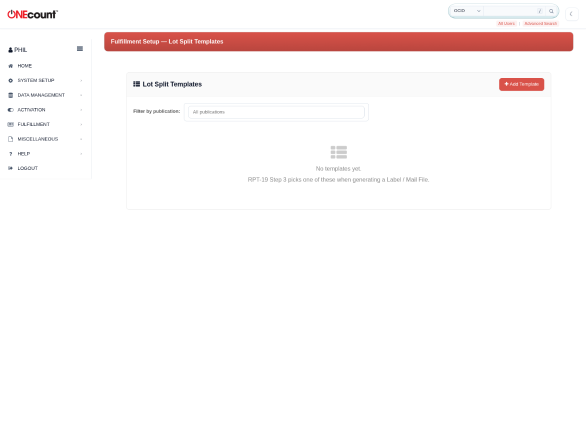
Navigate to Setup, then Lot Split Templates. Lot split templates define how a mailing is divided into lettershop lots for postal processing and presort optimization.
6.1 Template Structure
Each template belongs to a publication and contains one or more lot definitions. Each lot definition specifies a lot_id and the criteria that determine which recipients fall into that lot. Criteria can be based on subscription classification (paid, controlled, etc.), geography (domestic vs. international, specific states or countries), or segment membership.
6.2 Usage in RPT-19
When running RPT-19 (Issue Close), Step 3 prompts the operator to select a lot split template. The template determines how the recipient list is divided into separate presort files for the lettershop. Each lot is processed independently through AccuZip for address standardization and postal presorting.
6.3 Example
A template named "Standard Print" for a mixed publication might contain the following lots:
- Lot 1 — Paid Print Domestic: paid subscribers with domestic addresses, sorted for USPS automation rates.
- Lot 2 — Paid Print International: paid subscribers with international addresses, sorted by country.
- Lot 3 — Controlled: qualified nonpaid recipients.
- Lot 4 — Passalong: copies distributed through pass-along channels (office copies, waiting rooms, etc.).
7. AccuZip Integration
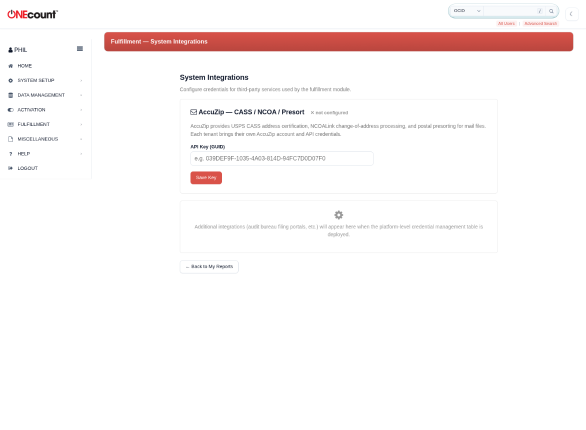
Navigate to Setup, then System Integrations. The AccuZip integration provides CASS-certified address standardization, NCOALink change-of-address processing, and USPS postal presorting.
7.1 Configuration
Enter your AccuZip API key in GUID format. This key is provided by your AccuZip subscription and is found in the AccuZip account management portal.
7.2 Test Connection
Click Test Connection to verify the API key. A successful test displays the account type, service level, and remaining credits. The connection status indicator shows one of the following states:
- Ready (green): credentials are valid and the service is responding normally.
- Slow (orange): credentials are valid but response latency exceeds 2 seconds. The service is usable but may cause longer processing times during issue close.
- Not configured (grey): no API key has been entered.
- Auth failed (red): the API key was rejected. Verify the key in your AccuZip account portal.
- Unavailable (red): the AccuZip service is not responding. Retry later or contact AccuZip support.
7.3 PAF Requirement
Before NCOALink processing can be used, a signed Processing Acknowledgment Form (PAF) must be on file with AccuZip. Complete the PAF at accuzip.com/products/ncoalink/paf/new. Without a signed PAF, CASS processing will still work but NCOALink moves will not be returned.
7.4 Credit Model
AccuZip charges credits per file upload. Each lot processed during RPT-19 consumes credits based on the number of records in the file. Monitor your credit balance via the Test Connection screen. If credits are exhausted during issue close, the AccuZip step will fail and the operator will need to purchase additional credits before retrying.
7.5 What AccuZip Does at Issue Close
When RPT-19 (Issue Close) reaches the AccuZip processing step, the following operations are performed on each lot file:
- CASS address standardization: every address is validated against the USPS Address Matching System. ZIP+4 codes are appended, suite numbers are normalized, Delivery Point Validation (DPV) confirmation codes are assigned, and vacant addresses are flagged.
- NCOALink change-of-address matching: addresses are checked against the USPS National Change of Address database (48-month window). Moved addresses are updated to the new address; records with no forwarding address are flagged.
- Postal presorting: the lot is sorted according to USPS automation rate requirements to maximize postage discounts.
- USPS documentation generation: a PDF bundle is produced containing the Mailing Statement (PS Form 3600), CASS Certification Summary, and Qualification Report.
8. Permissions
The Fulfillment module defines five permission roles. These are managed under the standard ONEcount permission management screen and appear under the Fulfillment category.
8.1 Permission Definitions
- fulfillment.view: allows the user to see completed report runs and download artifacts. This is the minimum permission required for any access to the Fulfillment module.
- fulfillment.run: allows the user to create new report runs and complete report wizards. Includes all view capabilities.
- fulfillment.close_issue: allows the user to sign off on RPT-13 and lock an issue. Includes all run capabilities.
- fulfillment.statement_file: allows the user to finalize RPT-11 (Publisher's Statement) and RPT-10 (USPS Form 3526) for filing. Includes all run capabilities.
- fulfillment.setup: allows the user to edit publications, rate base declarations, lot split templates, and system integrations. Also allows deleting report runs and reopening filed periods. This is an administrative permission and should be granted sparingly.
8.2 Stacking
Permissions stack upward. The close_issue permission includes everything in run, which includes everything in view. The statement_file permission also includes everything in run. However, close_issue and statement_file are independent of each other; a user can have one without the other.
8.3 Superadmin Bypass
Users with user_type = 'F' (superadmin) in oc_be_users bypass all permission gates. They have full access to every Fulfillment function regardless of their assigned permissions.
8.4 Recommended Role Assignments
- Circulation managers: view + run + close_issue. This allows them to generate reports and close issues as part of their daily workflow.
- Audit and compliance staff: add statement_file to the above. This allows them to assemble and file Publisher's Statements and USPS forms.
- Module administrators: add setup to the above. This allows them to manage publications, integrations, and system configuration.
9. Health Check
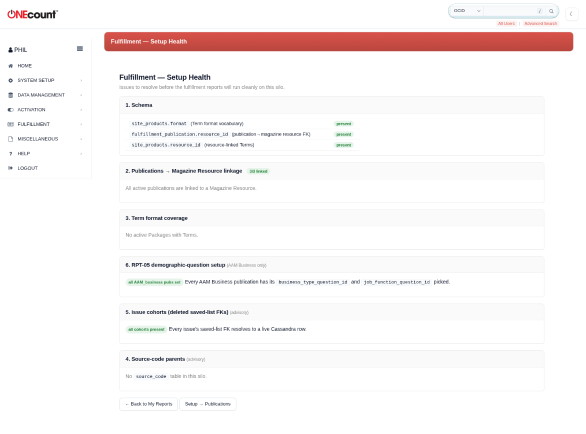
Navigate to Setup, then Setup Health. The health check screen provides a diagnostic overview of the fulfillment module's configuration state.
9.1 What It Shows
- Schema migration status: which SQL and CQL migrations have been applied to this tenant and which are pending.
- Unlinked publications: publications that do not have a valid resource_id. These publications cannot produce subscriber-based reports until linked.
- Term-format coverage gaps: ONEcount Terms (subscription types) that exist on the linked Resource but have not been mapped to fulfillment classification categories (paid, controlled, etc.).
- Cassandra table presence: verifies that all required Cassandra tables exist in the tenant's keyspace.
9.2 Bulk Apply
The one-click bulk-apply button attempts to resolve common configuration issues using heuristic rules. For example, it will auto-map Terms whose names contain 'paid' or 'free' to the corresponding fulfillment categories. Review the proposed changes before confirming.
9.3 When to Run
Run the health check after every migration deployment, after adding or modifying publications, and whenever a report produces unexpected results that might stem from a configuration issue.
10. Migration Rollout
The Fulfillment module requires SQL migrations applied to each silo's MySQL database on the write host (wh-write-cl01) and CQL migrations applied to each silo's Cassandra keyspace. Always apply SQL migrations first, then CQL migrations.
10.1 SQL Migrations
The following SQL migrations must be applied in order on the silo write host:
- 014: Base fulfillment tables — publication, issue, run, artifact, and log tables.
- 015: Issue summary and outbox tables, implementing the saga pattern for multi-step operations.
- 016: Super-level fulfillment_enabled flag on oc_clients.
- 017: Lot definitions and lot split template tables.
- 018: Magazine resource refactor — adds the resource_id link to the publication table.
- 019: Publication classification defaults.
- 020: Issue builder enhancements (additional fields and constraints).
- 021: Publication demographic priority configuration.
- 022: Artifact SHA-256 checksums for integrity verification.
- 023: Bulk reason codes for mass status changes.
- 024: AccuZip integration — adds configuration to oc_config and creates the address validation log table.
10.2 CQL Migrations
The following CQL migrations must be applied to each silo's Cassandra keyspace:
- CQL 001: fulfillment_issue_serve table.
- CQL 002: subscription_meta tables for enriched subscription data.
- CQL 003: serve_log_zip table for compressed serve logs.
- CQL 004: saved_list_user_details schema for list-level detail storage.
- CQL 005: adds and removals log tables for tracking subscriber changes between issues.
- CQL 006: status change history table for audit trail of subscription status transitions.
10.3 Verification
After applying each batch of migrations, run the Setup Health check (Section 9) to verify that all expected tables and columns are present. Address any warnings before proceeding to the next batch.
10.4 Fresh Silo Installation
For new silos that have never had the Fulfillment module, use the consolidated install scripts (install_fulfillment_v1 through v12). These scripts are idempotent and contain the cumulative effect of all individual migrations. They can be run safely on a silo that already has some migrations applied.