

How-To: Issue Close
How to use this guide
This document walks a circulation manager end-to-end through the issue-close process and the audit-statement filing that happens at the end of every reporting period.
The flow is broken into phases. Phases 1–5 happen once per issue and are repeated until every issue in the reporting period is closed. Phases 6–9 happen once at period end. The annual USPS 3526 filing (covered separately at the end) is independent of the audit cadence.
The process starts in the Issue Builder, where you compose the audited universe from multiple audience sources — saved queries and saved lists — with per-source print/digital counts and adjustment controls. This replaces the older List Wizard → Save as List → Save as Issue workflow.
Each phase lists the screens you visit, the buttons you click, and the data you should verify before moving on. Screenshots show what the screen should look like when you get there.
The process at a glance
- Phase 1 — Issue Builder: compose the audited universe from multiple audience sources (queries + lists), review print/digital split, adjust quantities.
- Phase 2 — Review the issue on the Issues page before locking.
- Phase 3 — Run RPT-13 to close the issue (open → locked).
- Phase 4 — Run RPT-19 to write the canonical serve log (AccuZip CASS/NCOA/presort, label file generation).
- Phase 5 — Run RPT-09 and RPT-15 for per-issue audit support.
- Phase 6 — Repeat phases 1–5 for every issue in the reporting period.
- Phase 7 — Run the audit reports (RPT-12, 14, 02, 01, 03, 04, 06, 07, 08) at period end.
- Phase 8 — RPT-11 assembles the Publisher's Statement bundle.
- Phase 9 — File with AAM and record the confirmation ID.
- Annual — RPT-10 produces the USPS Form 3526.
Phase 1 — Build the issue in the Issue Builder
The Issue Builder is where you compose the audited universe for an issue. Instead of building a single query and promoting it, you work directly on the issue page — adding multiple audience sources (saved queries and saved lists), reviewing the print/digital split for each source, and adjusting quantities with +/- controls. The Issue Builder merges all sources into a single composite saved list when you save.
Open the Issue Builder
From the left navigation, choose Fulfillment ▸ Reports ▸ any report that requires an issue, or go directly to Fulfillment ▸ Issues and click Create Issue. You can also reach it from a publication's detail page.
The Issue Builder page opens with a metadata form at the top (publication, issue date, mail date) and an empty Sources table below it.
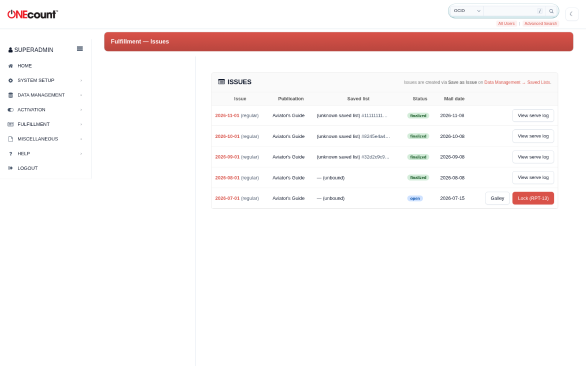
Set the issue metadata
Pick the publication from the dropdown. The page shows the publication's type (paid/controlled/mixed), audit bureau, and frequency.
Set the issue date and planned mail date. The mail date drives the CASS/NCOA recency checks at RPT-19 Step 2.
If the publication has reporting periods configured, the period is auto-selected based on the issue date.
Add audience sources
Click Add Source to add a row to the Sources table. Each source can be either a saved query (from List Wizard) or a saved list.
For a saved query source: pick the query from the dropdown, or click New Query to build one inline. The Issue Builder embeds the same filter grammar as the List Wizard — Demographics, Behavior, Engagement, Segment criteria. Hit Run Query to see the count.
For a saved list source: pick the list from the dropdown. The count appears immediately.
Each source row shows two columns: Print count and Digital count. These are auto-classified from the subscriber's term format (print, digital, or print_digital based on the site_products.format field). Dual-format subscribers appear in both columns.
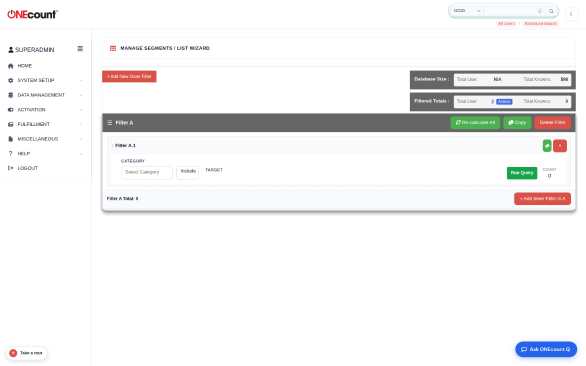
Adjust quantities
Each source row has +/- buttons on both the Print and Digital columns. Use these to fine-tune the counts — for example, to add 500 records from the addbank to close a rate-base gap, or to exclude a batch of known-bad records.
The adjustment deltas are saved per-source and appear in the issue's audit trail so auditors can see exactly what was manually adjusted and why.
Click the play icon (Run Query) in the Actions column to re-fetch the print/digital counts for a source after editing its query.
Preview and save
The totals row at the bottom shows the composite print + digital counts across all sources, including adjustments.
Click Preview 3B to open a modal with the live RPT-05 Para 3B cross-tab (business type x job function) computed from the current sources. This is a quick sanity check before committing the issue.
When satisfied, click Save Issue. The Issue Builder merges all sources into a single composite saved list and creates (or updates) the fulfillment issue record. The issue status is set to 'open'.
After saving, an Address Validation card appears below the sources table. See the next step.
Run address validation (recommended)
After the issue is saved, the Address Validation card appears at the bottom of the Issue Builder page. This sends the entire subscriber cohort through AccuZip's CASS/NCOA pipeline so you can see real deliverability metrics before locking.
Click Run Address Validation. The process takes 30–90 seconds depending on cohort size. A spinner appears while the batch runs.
When complete, a summary grid shows: cohort size, DPV Confirmed (valid delivery points), DPV Invalid (bad addresses), CASS Corrected (addresses that AccuZip standardized), NCOA Moves (subscribers who moved), and Vacant (flagged as unoccupied).
Use these metrics to decide whether to proceed. A high DPV Invalid or NCOA Moves count may indicate you need to run an ACS kills import or clean your subscriber file before closing the issue.
The validation timestamp is stored on the issue. When you reach RPT-19 Step 2, it will show the cached validation results instead of asking you to run a separate health check.
You can re-run validation at any time — for example, after editing sources or importing ACS returns.
Phase 2 — Review the issue before locking
After saving the issue in the Issue Builder, review it on the Issues page before proceeding to RPT-13. This is your last chance to edit the audience sources or adjust quantities.
Review on the Issues page
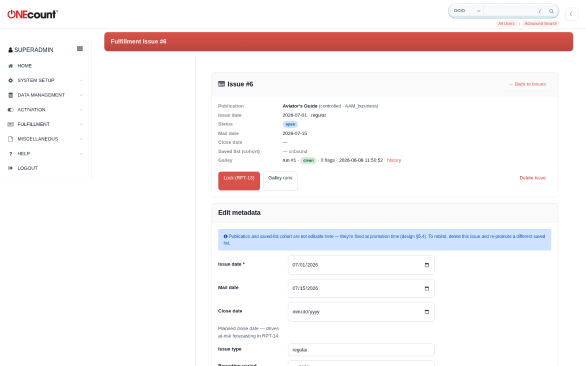
Navigate to Fulfillment ▸ Issues. The issue you just created appears with status 'open'. The row shows the publication, issue date, mail date, and the total record count from the composite saved list.
Click the issue date to open the Issue detail page. Verify the publication, saved-list cohort, mail date, and source breakdown are correct.
To re-edit the sources, click Edit in Issue Builder on the detail page. This returns you to the Issue Builder with the existing sources loaded.
When the issue is ready to lock, click the red Lock (RPT-13) button. This launches the RPT-13 wizard with the issue pre-selected.
Phase 3 — Close the issue (RPT-13 Issue Close Preliminary)
RPT-13 is the 5-step wizard that walks the issue from "open" to "locked". It surveys dedup status, address-hygiene results, and the preliminary counts the issue will carry. Once you sign off, the issue is locked and the label/mail file (RPT-19) becomes available.
Run RPT-13
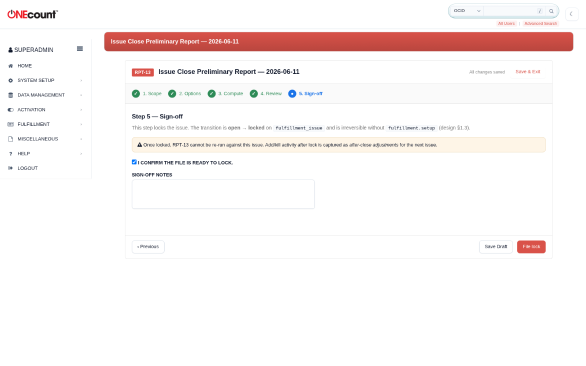
RPT-13 has five steps: Scope, Options, Compute, Review, and Sign-off. Each step autosaves; you can leave and come back via My Reports ▸ Resume.
Step 1 (Scope) — confirms the publication and open issue. The wizard pre-selects them when launched from the Issue detail.
Step 2 (Options) — exclude flags (DNC, undeliverable, pre-cancelled), dedup tolerance, hygiene thresholds.
Step 3 (Compute) — synchronous compute. Produces the preliminary count of paid, controlled, qualified-by-source, and disqualified records.
Step 4 (Review) — preview the counts and the issue's hygiene warnings before signing off.
Step 5 (Sign-off) — check the confirmation box, add any operator notes, and click File lock. The issue transitions open → locked and is committed to the fulfillment_issue table. This step is irreversible without the Setup permission.
Phase 4 — Generate the label/mail file (RPT-19)
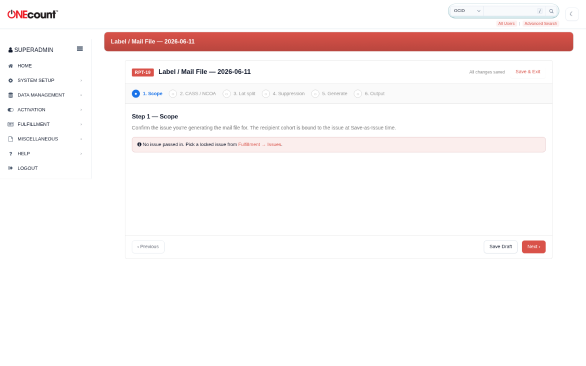
RPT-19 is the printer-ready label/mail file generated at close. As a side effect it writes the canonical issue serve log that every audit report reads back from. Until RPT-19 has run for an issue, downstream reports cannot reference that issue.
Run RPT-19
From My Reports ▸ + New Report ▸ Label / Mail File, or from the Issue detail's run-history. Pick the locked issue.
Step 2 (CASS / NCOA) — verifies your AccuZip connection is active. Click 'Check AccuZip Connection' to confirm credentials; the wizard shows account status and credits remaining. If you ran address validation from the Issue Builder (Phase 1), the cached results appear here — cohort size, DPV confirmed, DPV invalid, CASS corrected, NCOA moves. A green indicator means validation is within 7 days; amber means it is stale and you should re-validate from the Issue Builder before proceeding.
Step 3 (Lots) — pick the Lot Split Template configured under Setup ▸ Lot Templates. The template determines how the file is broken into lettershop lots (paid vs. controlled, full-service IMb vs. presort, by entry point).
Step 4 (Suppression) — toggle which records are excluded: ACS undeliverable, NCOA no-forward, DNC, addbank/reserve, null-address. The wizard shows live counts for each category.
Step 5 (Generate) — writes the per-recipient serve log to Cassandra, sends the file through AccuZip for CASS/NCOA/presort processing, stamps per-record cass_certified_at and ncoa_processed_at, and saves the USPS documentation PDF as an artifact.
Step 6 (Export) — CSV / XLSX / JSON / TXT / PDF artifacts ready for download and lettershop handoff.
Phase 5 — Per-issue audit supporting (RPT-09, RPT-15)
Two more reports run per-issue as part of the close: RPT-09 captures the adds/removals delta vs. the prior comparable issue (auditor supporting documentation), and RPT-15 captures nonqualified counts the operator enters by hand (bulk, sponsored, single-copy returns).
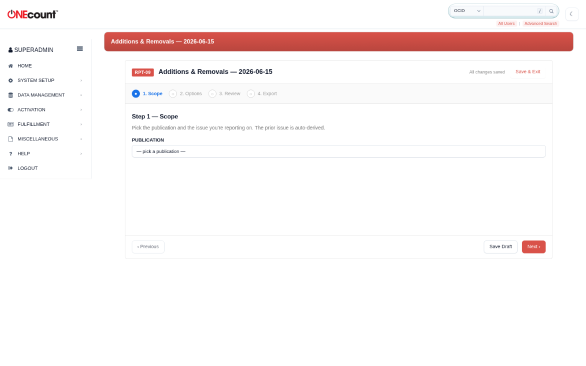
Run RPT-09 Additions & Removals
From My Reports ▸ + New Report ▸ Additions & Removals. Pick the publication and the just-closed issue.
Step 2 (Options) — comparison issue (defaults to the prior comparable). The wizard computes adds, kills, and transfers between the two issues, grouped by change_type and reason_code.
Step 3 (Review) — see the grouped totals.
Step 4 (Export) — CSV / PDF / JSON. RPT-11 reads this when it assembles the supporting documentation appendix on the Publisher's Statement.
Run RPT-15 Nonqualified Circulation
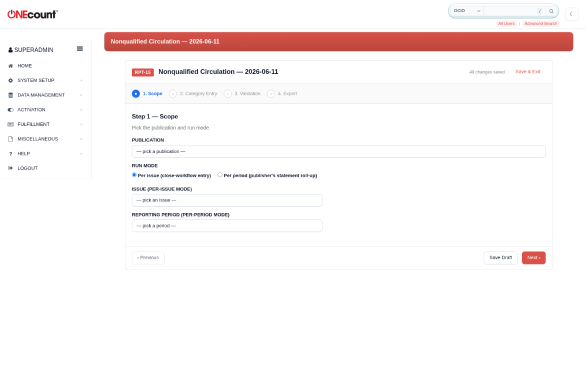
Open the RPT-15 wizard. Pick the publication and issue.
Step 2 (Counts) — enter the bulk, sponsored, single-copy returns, dealer/carrier, and any other nonqualified category totals for the issue.
Step 3 (Validate) — hygiene checks. If the nonqualified share exceeds the publication's configured house cap (Setup ▸ Publications ▸ nonqualified_cap_pct, default 0.50% — common publisher hygiene threshold, not a verbatim AAM rule), a warning fires. The warning is informational, not blocking.
Step 4 (Export) — CSV / PDF / JSON.
Phase 6 — Repeat for each issue in the reporting period
Phases 1 through 5 happen once per issue. A monthly magazine running on AAM Consumer cycles produces 6 issues per semi-annual period; a quarterly produces 2; a bimonthly 3.
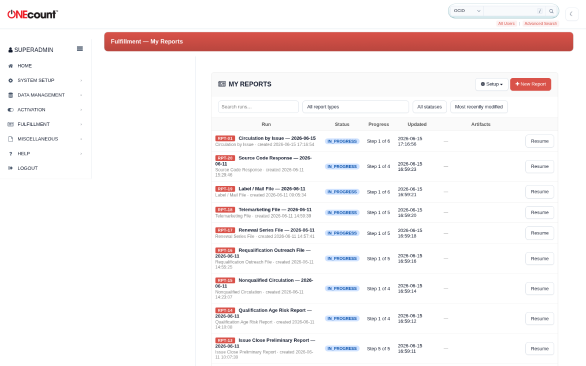
Track progress on My Reports
Every issue close produces 4 runs (RPT-13, RPT-19, RPT-09, RPT-15). Filter My Reports by report ID to confirm coverage — e.g. 6 completed RPT-13 runs for a 6-issue H1 reporting period.
Use the Setup Health page (Setup ▸ Setup Health) if you suspect a wiring problem after applying a fulfillment migration to the silo.
Phase 7 — At period end: run the audit reports
Once every issue in the reporting period has been closed, the audit reports roll up the per-issue figures into the paragraphs that go onto the Publisher's Statement. Most can be run in any order; RPT-14 must pass cleanly before RPT-11 will assemble.
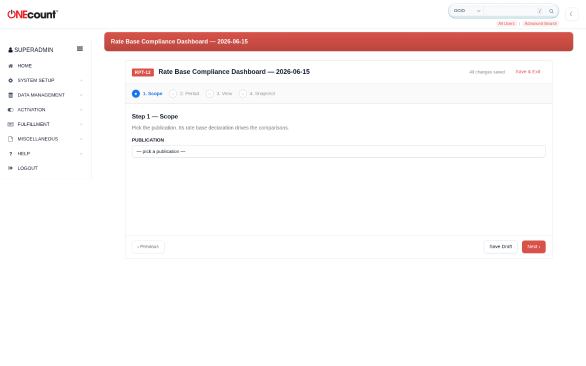
RPT-12 — Rate Base Compliance (paid publications)
RPT-12 confirms the running average lands on or above the declared rate base. Run it once at period close to lock the verdict into the period record. It is also the always-on dashboard you watch throughout the period.
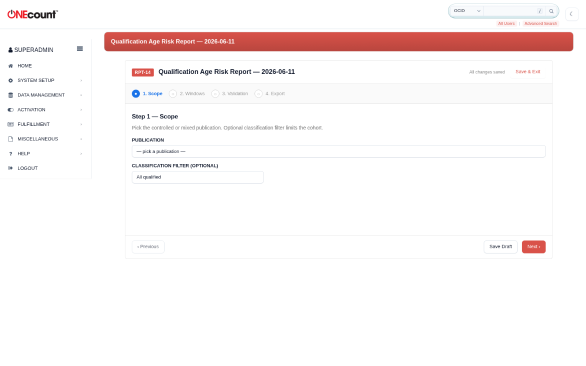
RPT-14 — Qualification Age Risk (controlled / mixed)
RPT-14 is the hygiene gate. It identifies controlled records whose qualification will expire inside the next reporting window and surfaces warning / critical zones.
RPT-11 will refuse to assemble if RPT-14 has not passed cleanly for the current period. The disqualified rows feed into RPT-16 (Requalification Outreach) so they can be re-engaged before the next filing.
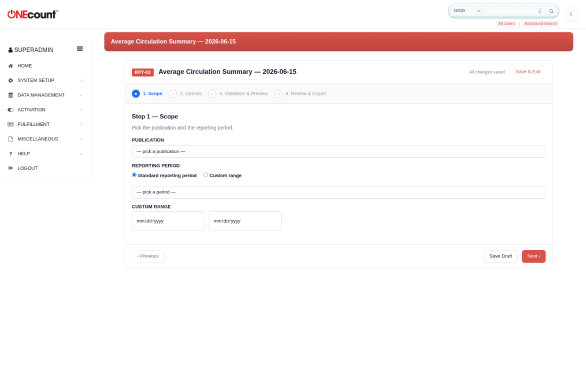
RPT-02 — Average Circulation Summary
RPT-02 is the headline cover-sheet page of the Publisher's Statement. It averages the per-issue figures RPT-01 produces across the period.
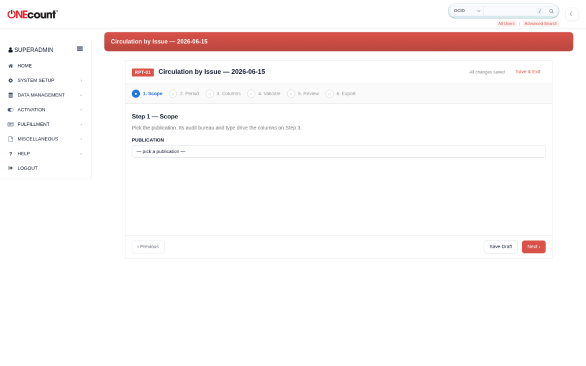
RPT-01 — Circulation by Issue
RPT-01 produces the issue-by-issue grid that anchors the statement. Paid, controlled, digital replica and non-replica counts for each issue, in the columns AAM expects for the publication's audit configuration.
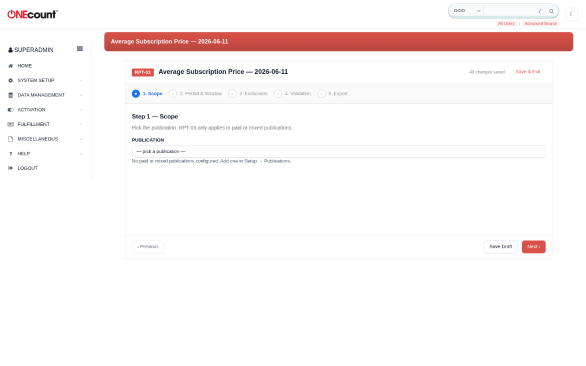
RPT-03 — Average Subscription Price (paid only)
RPT-03 reports the average price paid per subscription over the 12-month price window, and the comparison against the basic price. Required for AAM F 1.3 (consumer magazines); B2B has no equivalent disclosure.
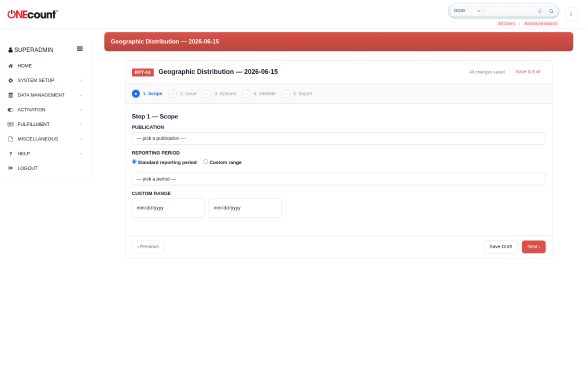
RPT-04 — Geographic Distribution
RPT-04 produces the state / country breakdown of the Audit Issue — the single issue per period whose full recipient list is retained for the auditor. Publications above 500K circulation also produce the Nielsen A/B/C/D county-size appendix.
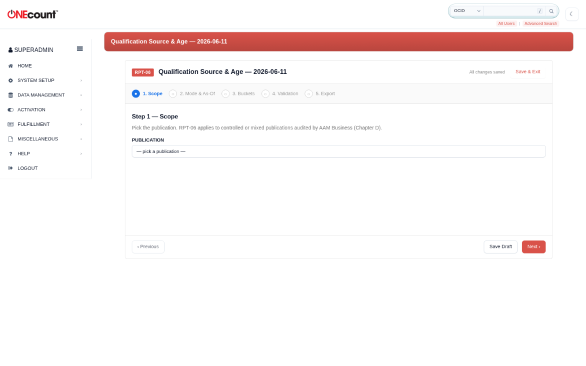
RPT-06 — Qualification Source & Age (AAM Business)
RPT-06 produces the controlled-circulation source / age distribution required by AAM Chapter D Para 5. Run once per period on the Audit Issue's audited cohort.
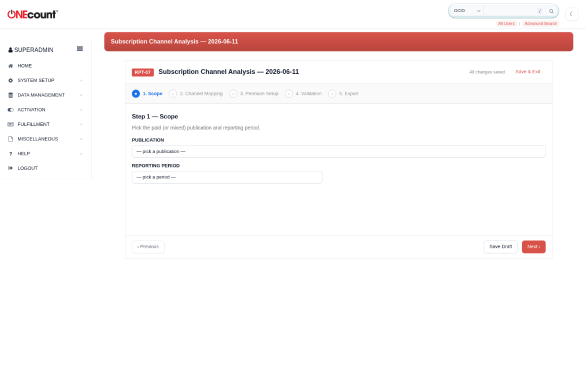
RPT-07 — Subscription Channel Analysis (paid only)
RPT-07 breaks down new and renewal orders by acquisition channel (direct mail, agent, web, telemarketing, etc.). Produces the Para 8 source table on the statement.
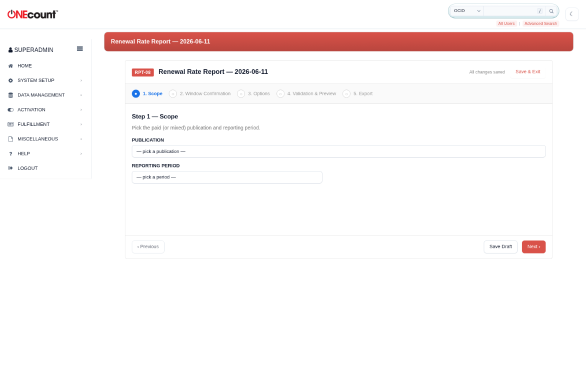
RPT-08 — Renewal Rate (paid only)
RPT-08 measures what percent of paid subscriptions that expired during the AAM-defined window were renewed. The window is fixed by AAM (12 months ending 8 months before period end) and is read-only.
Phase 8 — Assemble the Publisher's Statement (RPT-11)
RPT-11 is the master assembly. It stitches the completed component runs into a single immutable Publisher's Statement bundle. RPT-11 never recomputes — every number comes from the upstream runs' result blobs.
Run RPT-11
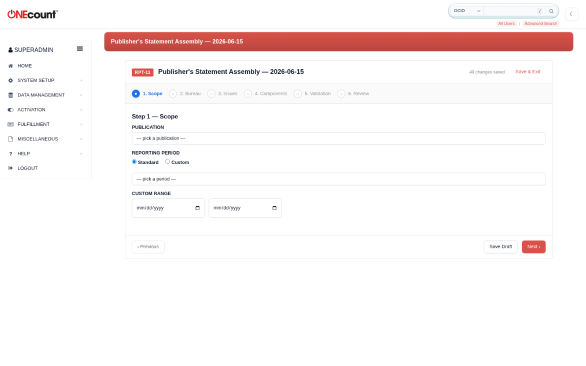
From My Reports ▸ + New Report ▸ Publisher's Statement Assembly. Pick the publication and the reporting period.
Step 2 (Bureau) — defaults to the publication's configured audit_bureau (AAM Consumer or AAM Business). Operators can override per-statement.
Step 3 (Issues) — pick the Audit Issue and the Analyzed Issue. The Audit Issue is the one whose full recipient list is retained; the Analyzed Issue drives Para 4 selection-of-issue logic.
Step 4 (Components) — RPT-11 lists every component report it expects and the status of its most recent completed run. Components that are missing, out of tolerance, or stale block the assembly. Click the resolve link on each blocker to fix before continuing.
Step 5 (Validation) — cross-component reconciliation. RPT-11 sanity-checks that RPT-02's averages match the rollup of RPT-01's per-issue figures, that RPT-04's geographic total equals the Analyzed Issue's RPT-01 row, and so on.
Step 6 (Review) — preview the assembled PDF + JSON bundle. Confirm and Save & Exit; the bundle is written to fulfillment-files/{silo}/{run_id}/ and the run is marked completed.
Phase 9 — File with AAM and record the confirmation
Auto-submission to the AAM MediaIntelligence portal is not in v1 — the operator files manually using the artifact RPT-11 produced.
Submit and record confirmation
From the My Reports row for the completed RPT-11 run, download the PDF and JSON artifacts.
Log into the AAM portal (mediaintelligence.auditedmedia.com), submit the PDF as the Publisher's Statement for the period, and attach the supporting documentation (RPT-09, RPT-15, etc.).
When AAM returns a confirmation ID, paste it into the confirmation_id field on the RPT-11 run (My Reports ▸ Resume the run ▸ confirmation field at the top of the Review step).
The reporting period's status now transitions closing → filed. Filed periods are read-only; re-opening requires both the Setup and Statement File permissions.
Annual filing — USPS Form 3526 (RPT-10)
RPT-10 is the annual USPS Statement of Ownership, Management, and Circulation. It is independent of the AAM Publisher's Statement and runs once per year per publication.
Run RPT-10
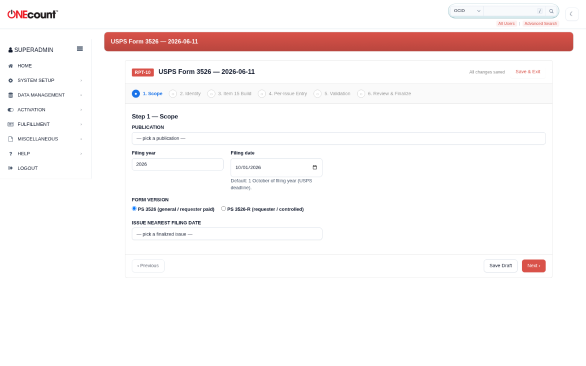
From My Reports ▸ + New Report ▸ USPS Form 3526. Pick the publication and the filing date.
Step 2 (Issue) — pick the nearest closed issue.
Step 3 (Header data) — verify the publisher, editor, managing editor names and addresses; the USPS permit number; the office of publication ZIP; and the owners / security holders. These come from the publication's setup record but can be overridden per-run.
Step 4 (Validate) — synchronous compute against the issue's serve log.
Step 5 (Review) — preview the 3526 fields.
Step 6 (Export) — produces the signed PDF (Form 3526 or 3526-R, auto-selected by publication_type and audit_bureau) and the in-magazine printed notice block.
Troubleshooting
Common failure modes and where to look. Most can be resolved without engineering help by reading the Setup Health page and the affected wizard's error banner.
Setup Health first
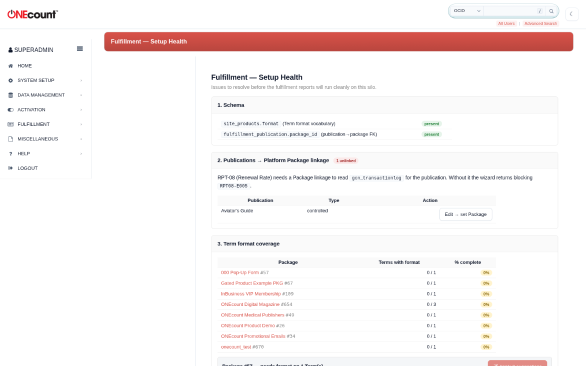
If you just applied a fulfillment migration, open Setup ▸ Setup Health. It surfaces schema state, unlinked publications (missing package_id), per-Package Term-format coverage, and provides one-click bulk-apply for heuristic suggestions.
RPT-13 sign-off failed
Check that the publication has a linked package_id (Setup ▸ Publications). RPT-13 cannot lock an issue whose publication is missing the link.
Check the wizard's error banner for an RPT13- error code; each maps to a specific data condition (see the RPT-13 design doc).
RPT-19 didn't write the serve log
The serve log is written to Cassandra (fulfillment_issue_serve in <silo>_app keyspace) via an outbox writer. Check the outbox table (fulfillment_issue_summary_outbox) for the issue's row status. A failed write leaves status='failed' with the error message; the saga retries.
RPT-08 says "degraded"
Means the Cassandra subscription_log_by_term table doesn't have the columns RPT-08 prefers (currency, term_length_months, gross/net amounts, is_renewal, cancellation_reason, source_code, premium_code). Until the schema lands, RPT-08 falls back to MySQL gcn_transactionlog — the renewal-rate compute is correct, the channel breakdown is less precise.
RPT-11 says "component missing" or "out of tolerance"
Step 4 of RPT-11 lists every blocker individually. Click resolve on each to jump to the component's wizard, fix and re-run, then return to RPT-11 and click Re-check.
If a component's reconciliation tolerance is the blocker, check the run's result_summary blob — the envelope check at Step 5 produces a specific delta report.
Where to go next
For the per-report reference (what each report answers, what the audit hook is, what the wizard inputs are) see the End-User Guide at docs/fulfillment/user-guide/fulfillment-user-guide.docx.
For the rule citations and the post-merger AAM Chapter D details see docs/fulfillment/reference/.
For the per-report acceptance tests (the exact pass/fail conditions a QA engineer walks through), see docs/fulfillment/acceptance-tests/.